
Overview
SMS Campaigns
Text your guests from Gatsby. Every event gets a free SMS Auto-Reminder, and a paid add-on adds ad-hoc SMS campaigns with mail merge, scheduling, and delivery tracking.
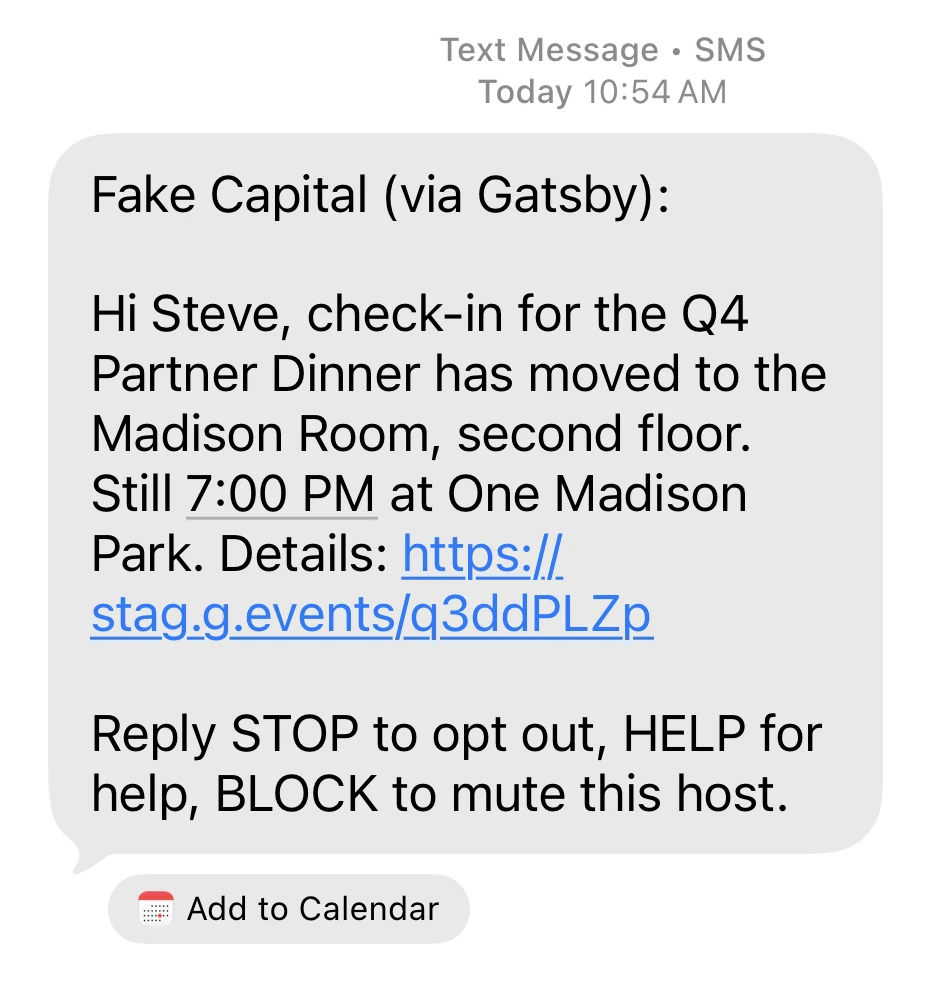
A text gets read. An email gets filed.
The day before a dinner, an email lands in a folder your guest opens on Monday. A text lands on the lock screen. SMS is for the messages that only matter if they arrive now: the reminder, the room change, the last call for a headcount.
The SMS Auto-Reminder is free
Switch it on per event. Guests who accepted get one text 24 hours before the start. No cost, no setup.
The add-on unlocks everything else
Write your own texts, pick your own recipients, schedule them, and build custom SMS reminders.
One tab, both channels
SMS campaigns live in the same Campaigns tab as email, with a channel label on every row.
The free SMS Auto-Reminder
Section titled “The free SMS Auto-Reminder”Nothing to buy and nothing to write. You turn it on for an event, and Gatsby texts the guests who said yes, 24 hours before the start. Anyone without a US mobile number on file, or who has opted out, is skipped.
Turning it on for an event
-
Open the event and go to the Registration tab.
-
Pick SMS Auto-Reminder from the list on the left.
-
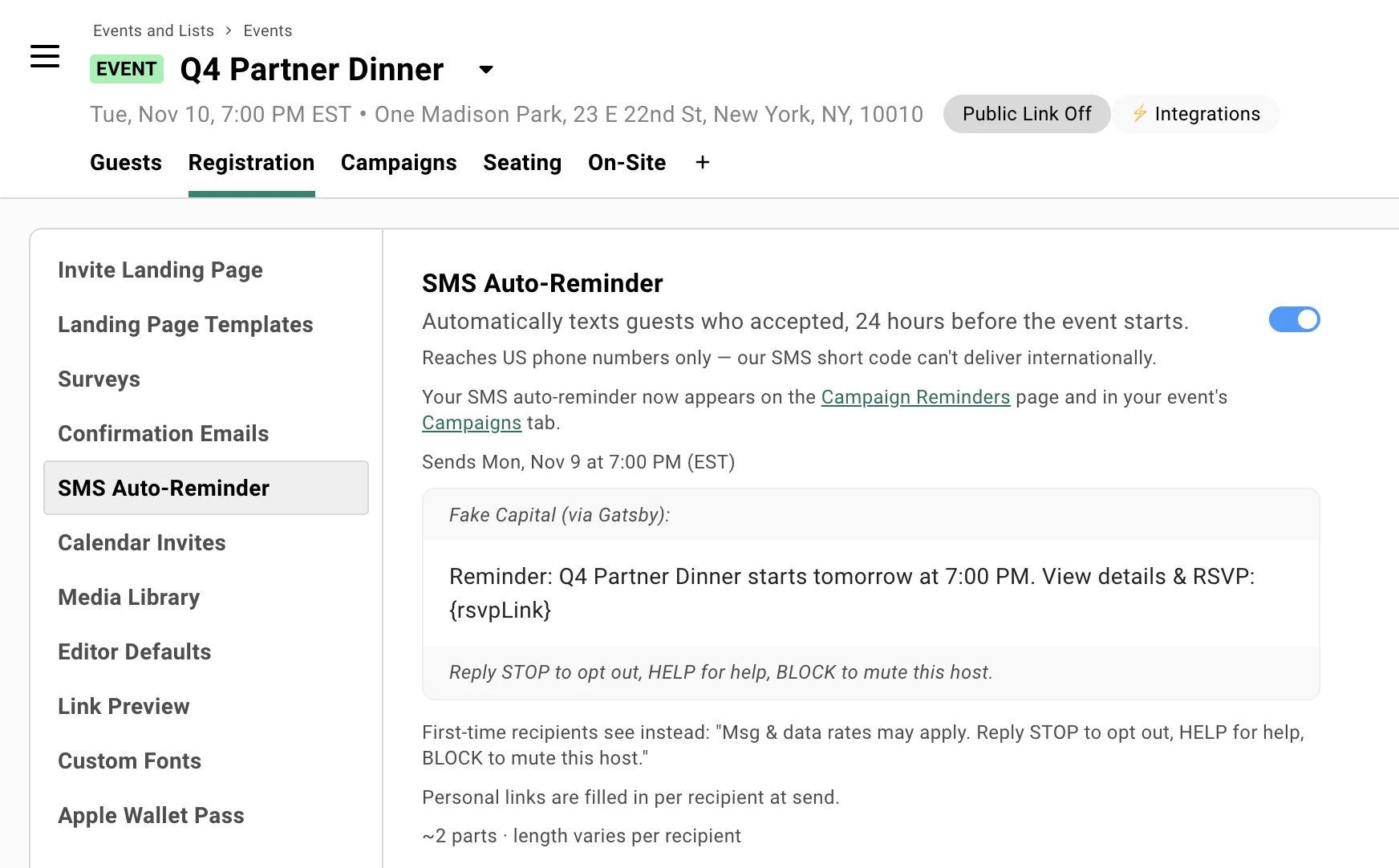
Read the preview. It shows the exact message, with your organization’s name, this event’s name, and its local start time.
-
Flip the toggle on.
The setting is per event and starts off. Before you turn it on, the page already tells you when it would go, as Would send Sun, Sep 6 at 5:00 PM (PDT), so you can check the timing first. Flipping it on schedules the reminder immediately, the line changes to Sends…, and the reminder appears in the event’s Campaigns tab straight away.
The first time anyone in your organization authorizes a text, this toggle included, Gatsby asks you to confirm two things about your guest relationships. See SMS Consent & Compliance.
What the reminder says
The message is fixed. Editing it is what the paid add-on unlocks.
Meridian Capital (via Gatsby):
Reminder: Q1 Partner Dinner starts tomorrow at 6:00 PM. View details & RSVP: [link]
Reply STOP to opt out, HELP for help, BLOCK to mute this host.
Your organization’s name leads every message, because your guests have a relationship with you, not with Gatsby. The link is each guest’s personal RSVP link, filled in per recipient at send, so they can still change their answer from the text.
Someone receiving their first-ever Gatsby text gets a longer footer in place of that one: Msg & data rates may apply. Reply STOP to opt out, HELP for help, BLOCK to mute this host.
Who receives it
Guests who meet all four conditions at the moment the reminder fires:
- RSVP status is Accepted
- A valid US phone number on file
- Not opted out of Gatsby texts entirely
- Not opted out of texts from your organization
The list is computed when the reminder sends, not when you turn the toggle on. Someone who accepts the morning of the send is included. Someone who declines is dropped.
If the event moves
The reminder follows it. Change the event’s date and Gatsby reschedules the text to 24 hours before the new start time, and re-renders the message so the time it quotes is correct.
Turn the toggle off and the scheduled reminder is cancelled. Turn it back on and it’s rescheduled.
Events starting within 24 hours
There’s nothing to schedule. If you switch the toggle on for an event that starts in less than 25 hours, Gatsby warns you that this event starts in less than 25 hours, so the reminder may not be sent.
For a same-day message on an event that’s already close, send an SMS campaign instead. Writing and sending your own texts takes the SMS add-on.
Where it shows up
In the event’s Campaigns tab, as an ordinary row with an Automatic label and a Scheduled status. It also appears in the Campaign Reminders dashboard alongside your email reminders.
The row has no menu, because the reminder is system-owned. To change it, go back to Registration → SMS Auto-Reminder. Open the campaign itself and a banner says the same thing.
The SMS add-on is in limited release. Gatsby is turning it on for a small group of pilot customers. If you’d like to be one of them, email help@gatsby.events. The free SMS Auto-Reminder above is available to every organization now.
Creating an SMS campaign
Section titled “Creating an SMS campaign” Starting one
-
Open the event’s Campaigns tab and click New Campaign.
-
Pick SMS, described as Send a text message campaign, in the channel picker.
-
Pick how you want to work: Draft (edit and add recipients before sending, the recommended default), Campaign (build the message and save it straight to Campaigns), or Schedule reminder (send it later to guests picked when it goes out).
-
Write your message. The composer tab is titled New SMS Message so you always know which channel you’re in.
-
Add recipients, then send now or schedule.
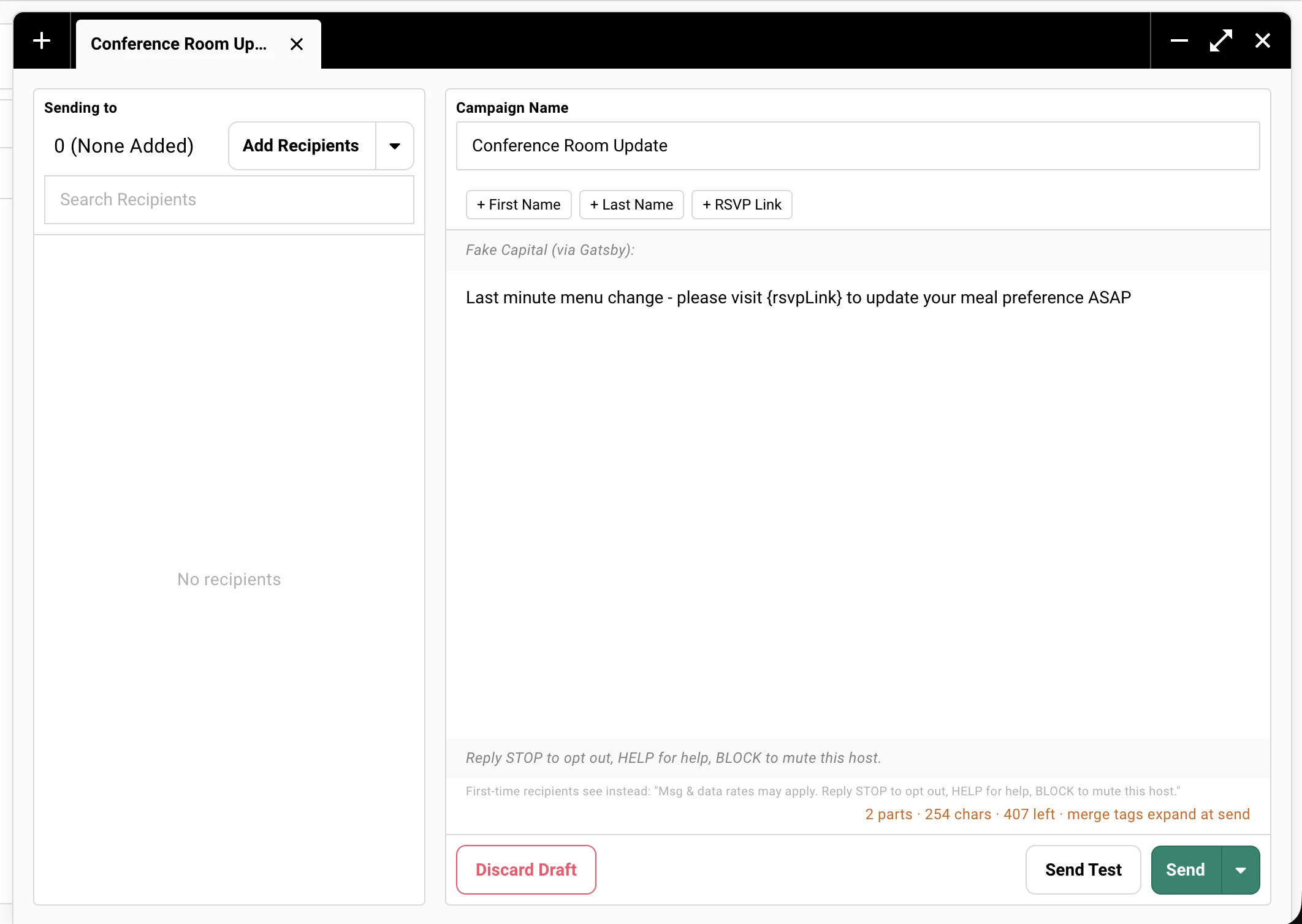
There’s no subject line, no formatting, and no attachments. SMS is plain text. The Campaign Name field at the top is internal. Only your team sees it.
What Gatsby adds to every message
Your text is wrapped, automatically, in two lines you can’t remove:
- Above it: your organization’s name and the
(via Gatsby)tag. - Below it: the keyword footer, Reply STOP to opt out, HELP for help, BLOCK to mute this host.
The very first message a phone number ever receives from Gatsby gets a longer footer instead: Msg & data rates may apply. Reply STOP to opt out, HELP for help, BLOCK to mute this host. After that, the shorter one is used. In the composer, hover the info icon at the end of the footer to see it.
The composer shows your message inside a text bubble, with your organization’s name at the top and the footer at the bottom, so what you see is what sends.
Mail merge
Three buttons above the message box insert the tags, plus a fourth when the event’s public link is on:
| Button | Tag | What it becomes |
|---|---|---|
| + First Name | {firstName} | The guest’s first name |
| + Last Name | {lastName} | The guest’s last name |
| + RSVP Link | {rsvpLink} | That guest’s personal RSVP link |
| + Public Link | {publicRsvpLink} | The event’s public link, the same for everybody |
{rsvpLink} is personal. Each guest gets their own link, and clicking it takes them straight into their RSVP without signing in. Links are shortened to a g.events address so they don’t eat your character budget. The composer shows the tag itself; the real values are filled in per recipient at send.
+ Public Link only appears once you’ve switched Public Link on for the event yourself. Adding it to a message doesn’t open your event to public registration. See Registration Links.
SMS only understands the curly-brace form. The #firstName style used in email bodies is left as literal text.
Message length and the character counter
The counter under the message reads something like 175 / 498 characters. The second number is the room you have. Gatsby has already set aside space for your organization’s name and the longer first-time footer, so you’re only counting what you type. A long organization name means less room.
Go over and the counter turns red, and the composer tells you exactly how many characters to cut.
SMS takes plain text. Emoji and some special characters can’t be sent, and the composer asks you to remove them. Curly quotes, long dashes and ellipses are swapped for plain versions automatically, and a notice tells you what changed. Accented letters such as é, ü and ñ are fine.
With a merge tag in the message, the count starts with a ~. Names and links vary in length, so the count is close but not exact.
Sending a test to yourself
Click Send Test in the composer and Gatsby texts the message to your own phone, framed exactly as a guest would see it. If you don’t have a number on your profile, it asks for one. Test sends must go to a US number, and they’re never billed.
Choosing recipients
Section titled “Choosing recipients”A guest with no phone number can’t be texted, so Gatsby keeps them out of the picker rather than letting you add them and fail later.
The reachable count
The recipient picker works the way it does for email, with tabs for Guest List and each RSVP status, a search box, and Add all guests. The one difference is that each person is listed with their phone number instead of their email.
Where some guests can’t be reached, the panel says so: X of Y reachable, US numbers only. Guests without a phone, and guests whose number isn’t a valid US number, aren’t selectable, and Add all guests adds only the reachable ones.
Guests who've opted out
They stay out of the send. Gatsby re-checks who has opted out at the moment the message goes, not when you build the list, so someone who texts STOP an hour before your campaign fires is dropped. They’re recorded on the campaign as Unsubscribed, with the reason Recipient opted out.
The send-time preview
Before the message goes, Gatsby shows it in a text bubble with an SMS badge, along with how many people it’s going to and its character count. Personal links are filled in per recipient at send. Anyone who can’t be reached is listed with the reason.
If the whole send works out to more than 10,000 segments, the units carriers split a long text into, you get an extra confirmation step restating the total. You can still send. It’s there so an accidental full-list blast is a decision rather than a slip.
Scheduling
Same as email. Pick a date, time, and timezone in the scheduling modal and the campaign fires unattended. Scheduled SMS campaigns appear in the Campaigns list with their send time.
Tracking what happened
Section titled “Tracking what happened” Delivery statuses
An SMS campaign has the same tabbed recipient view as an email one, minus the email-only ones. There’s no Opened, because a text has nothing to track an open with.
Sent. Accepted by the carrier and on its way. A delivered message stays here.
In Progress. Queued and being sent.
Bounced. The carrier reported the message as undelivered. Usually a disconnected number, or one that can’t receive texts.
Failed. The send didn’t happen. Most often a number that isn’t a valid US number, which is recorded with that reason.
Blocked. Gatsby stopped the send before it went. An opted-out guest lands here.
Scheduled, Not Sent To, and Reminders work exactly as they do for email.
Where SMS shows up alongside email
There’s no separate SMS tab, by design. SMS and email campaigns share one Campaigns list, and every campaign carries an SMS or Email badge: in the Drafts and Sent lists, on the campaign’s own page, in the send preview, and on a contact’s Campaigns tab. The Campaign Reminders dashboard works the same way.
Who on your team can send SMS
Section titled “Who on your team can send SMS”Stricter than email, deliberately. Texts cost money per message, and carriers regulate text messaging in ways they don’t regulate email. A careless send costs more than a wasted campaign.
| Role | Can send SMS |
|---|---|
| Super Admin | Yes |
| Admin | Yes |
| Team Member | Yes |
| External Collaborator | No |
External Collaborators don’t see the SMS option in the channel picker, can’t open an SMS composer, and are refused by the server if they try another way. They can still send email campaigns.
Only Admins and Super Admins can buy or manage the SMS add-on. See Plan & Billing. Everyone else who runs into the paid features is pointed at help@gatsby.events.
Common Questions
Section titled “Common Questions” Do I need the paid add-on to use the SMS Auto-Reminder?
No. The 24-hour reminder is free for every organization, forever, on every event except a quick event. The add-on unlocks writing your own texts and customizing reminders.
If a paid organization stops paying, the add-on switches off but the free reminder keeps working.
Can I text guests outside the US?
No. The number Gatsby sends from is registered with US carriers and only reaches valid US numbers. Any number outside the US is marked Unsupported in the guest list and is filtered out of every SMS send.
Can I change the wording of the free reminder?
Not the free one. With the SMS add-on you can build a custom SMS reminder with your own copy, timing, and audience. See Campaign Reminders. Many organizations run both: the SMS Auto-Reminder as a safety net, a custom one for the events that need a specific message.
Will my guests know the text is from us?
Yes. Your organization’s name leads every message, ahead of the text you wrote, so a guest sees who is contacting them before they read a word of it. The preview in the composer shows exactly how it will look.
A guest replied STOP. What does that stop?
Every Gatsby event text to that number, not only yours. STOP is a carrier-level instruction and it isn’t something Gatsby can narrow or undo. The guest gets back by texting START.
A guest who wants to stop hearing from you specifically, without going quiet everywhere, replies BLOCK or uses the preference center. SMS Consent & Compliance covers both.
Can I attach an image to a text?
Not yet. SMS in Gatsby is plain text only.
Where do I see how an SMS campaign did?
On the campaign, the same as email. The Campaigns tab shows each send with its headline counts, and opening one gives you a tab per outcome with the guests in each. Link clicks aren’t tracked for SMS yet.
What happens if a guest replies to a text?
Keyword replies (STOP, HELP, BLOCK) are handled automatically. Anything else gets a one-time pointer to the SMS help page, and doesn’t reach your inbox. Gatsby’s short code isn’t a two-way conversation channel; put a reply-to path in the message body if you need one.