
Overview
Zoom Integration
Run Zoom webinars through Gatsby. Register guests from your own branded RSVP, bring Zoom's registration questions into your form, give every guest their own join link, and sync attendance back to your guest list.
Your webinar runs on Zoom. Does it have to look like Zoom?
Zoom’s registration page is Zoom’s. So is its confirmation email. For an invitation-only investor briefing or a client education series, the first thing your guests see shouldn’t be someone else’s product.
Gatsby now supports Zoom webinar flows end to end, so Zoom does the broadcasting and you keep the experience.
Your registration, your branding
Guests register on your Gatsby landing page and get your confirmation email, not Zoom’s.
Zoom’s questions, your form
The registration questions you built in Zoom appear inside your Gatsby RSVP. Guests answer once.
One link per guest
Every registered guest gets their own Zoom join link, so a webinar that requires registration actually requires it.
Answers where you already work
Responses land on your guest list beside RSVP status and attendance, ready to review before you approve anyone.
How the Integration Works
Section titled “How the Integration Works”Gatsby connects to your Zoom account so you can manage meeting links, register guests, and track attendance from one place. Three things happen:
Meeting links flow into your calendar invites. You create or link a Zoom meeting from your event page, and the join URL appears in every calendar invite Gatsby sends. No switching between Zoom and Gatsby to copy URLs.
Registration can run through your Gatsby RSVP. If your Zoom webinar requires registration, Gatsby can register each guest who RSVPs yes and show Zoom’s own registration questions inside your RSVP form, so guests answer once instead of twice. This is off by default.
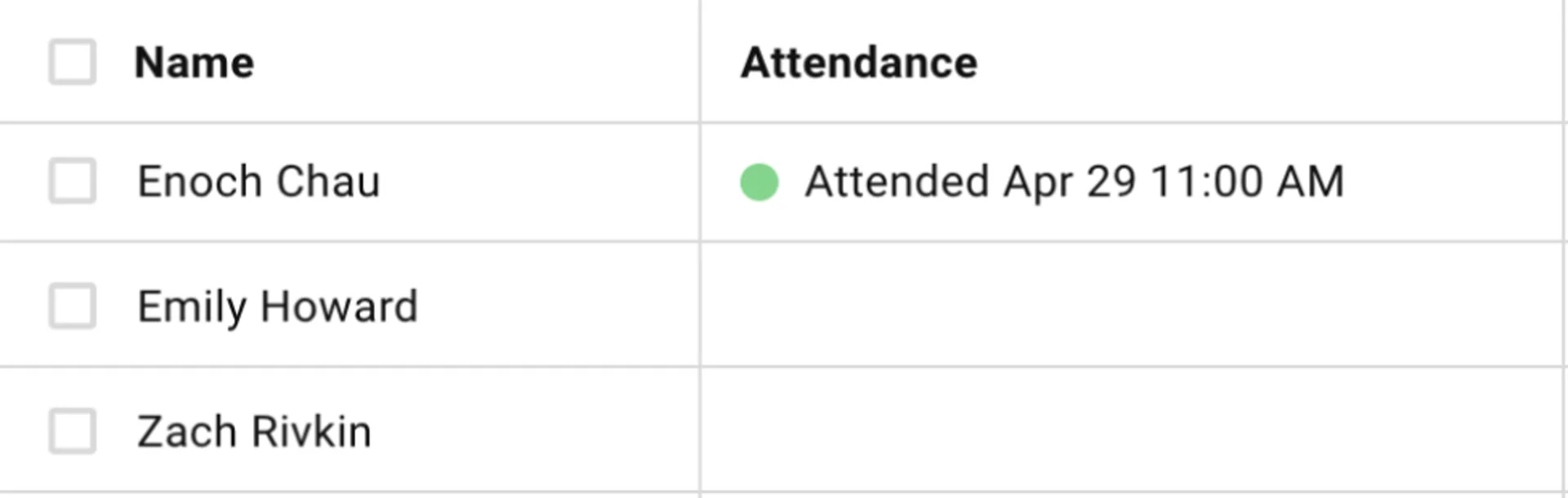
Attendance syncs back to your guest list. Starting 30 minutes after the meeting’s scheduled end time, Gatsby pulls the attendee list from Zoom and matches it against your guests. When it matches, attendance marks automatically. When it doesn’t, you export from Zoom and import to Gatsby.
Why admin permissions are required
The person connecting must be a Zoom account admin. Admin access gives Gatsby visibility into all users on the account, so any team member can link meetings hosted by anyone.
Without admin access, you only see your own meetings. Other team members won’t be able to link theirs.
Connection steps
-
Go to Team Settings > Linked Services > Zoom.
-
Click Add Account.
-
Authenticate with your Zoom admin account.
-
Authorize Gatsby to access Zoom.
-
Return to Gatsby. Refresh if needed.
The Zoom option now appears when adding virtual locations to events.
Adding Zoom Meetings to Events
Section titled “Adding Zoom Meetings to Events”Link an existing Zoom meeting or create a new one directly from your event page. Either way, the join URL populates your calendar invite.
Link an existing meeting
-
Open your event in Gatsby.
-
Go to Event Details.
-
Find the Location section.
-
Click Add virtual location.
-
Select Link existing meeting.
-
Choose your meeting from the dropdown, or paste the meeting details.
-
Save.
Create a new meeting from Gatsby
-
Open your event in Gatsby.
-
Go to Event Details.
-
Find the Location section.
-
Click Add virtual location.
-
Select Add Meeting.
-
Gatsby creates the meeting using your event’s name, date, and time.
The meeting appears in your Zoom account immediately.
The Registration Questions Toggle
Section titled “The Registration Questions Toggle”Find Show Zoom registration questions in your event’s Zoom settings, alongside the meeting details. It is off by default.
Turning it on does two things: it registers guests with your linked Zoom webinar when they RSVP, and it pulls Zoom’s own custom registration questions into your RSVP form so guests answer them there.
Turn it on even if your webinar has no custom questions. The registration itself is what produces each guest’s join link.
Write your registration questions in Zoom before you invite anyone, and don’t rename them afterwards. Zoom identifies each question by its title alone, with no ID underneath, so a question you rename later reads to Gatsby as a brand new question. You end up with duplicates in your survey and answers stranded on the old wording. Settle the wording in Zoom first.
What happens when it's on
- Guests who RSVP yes, maybe, or land on the waitlist are registered with your Zoom webinar. Guests who decline are not.
- Zoom’s custom registration questions appear in your RSVP form. Name and email are filled in from the RSVP automatically, so guests never retype them.
- Required Zoom questions are enforced before the RSVP submits.
What happens when it's off
Guests are not registered with Zoom and will not receive a Zoom join link. They can still RSVP in Gatsby, and they can still register themselves on the Zoom side.
This is the right setting when you want Zoom to own approvals and its own confirmation emails.
Why the toggle might not appear
The toggle only shows when there is something for it to do: either the linked webinar actually requires registration, or you have just created the Zoom meeting from Gatsby.
Gatsby checks Zoom live to work this out, so you may briefly see Checking Zoom registration… first.
If you created the meeting from Gatsby and have not set registration up in Zoom yet, you can still turn the toggle on now to pre-enable it for when you do.
Limitations worth knowing
- Plus-ones are not registered with Zoom. Only the guest on your list is. Register additional attendees directly in Zoom.
- Registration never blocks an RSVP. If Zoom is unreachable when a guest submits, their Gatsby RSVP still saves. The Zoom registration is what fails, quietly, and you may need to add that person in Zoom.
Each Guest Gets Their Own Join Link
Section titled “Each Guest Gets Their Own Join Link”When Zoom registers a guest, it issues a join link unique to that person. Gatsby stores it and uses it instead of the shared event link.
This matters for webinars that require registration. A shared link lets anyone in without registering, which defeats the approval step you turned registration on for.
Where the per-guest link appears
- Calendar invites. The
.icsdescription uses the guest’s own link when there is one, and falls back to the shared meeting URL otherwise. - Confirmation emails. Insert Zoom Join Link from the editor’s merge-tag menu. It resolves to each recipient’s own link when the email sends.
The Zoom Join Link option only appears in the menu when the event has a Zoom meeting linked through Gatsby, since that’s the only case where per-guest links exist.
Guests who never registered
A guest with no Zoom registration has no personal link. They get the shared meeting URL, exactly as before.
Zoom Answers in Your Guest List
Section titled “Zoom Answers in Your Guest List”Answers guests give to Zoom’s registration questions now come back into Gatsby as survey responses. They appear on the Guests tab beside everything else you know about that person.
This also clears a false warning. Previously a guest could complete registration in Zoom and still show Survey Not Submitted in Gatsby, because Gatsby had no record of their answers.
Synced questions are read-only in Gatsby
Questions that came from Zoom appear in your survey editor marked Synced from Zoom · edit in Zoom. You can see them, but you can’t rename, reorder, or delete them from Gatsby.
Zoom owns those questions. Edit them in Zoom, then use Sync questions from Zoom to bring the changes across.
Guests don't see the questions twice
Synced questions are organizer-facing only. Your guests continue to see the single Zoom registration section in the RSVP form, so nothing is duplicated for them.
Why renaming causes duplicates
Zoom’s API hands Gatsby each custom question as a title, a type, and its answer options. It does not include an ID, and Zoom exposes no stable identifier for a registration question anywhere in its API.
So the title is the only thing Gatsby can match on. Rename Dietary requirements to Dietary needs in Zoom, and the next sync sees a question Gatsby has never met. It adds the new one and retires the old one, leaving any answers already collected attached to the retired version.
The working order, then:
-
Build your registration questions in Zoom, with the wording you actually want.
-
Turn on Show Zoom registration questions in Gatsby.
-
Send your invitations.
If you must reword a question after responses exist, expect the old question and its answers to stay behind alongside the new one. Export what you need first.
Attendance Tracking
Section titled “Attendance Tracking”Gatsby pulls the attendee list from Zoom once the meeting’s scheduled end time has passed, then checks matching guests in on your guest list.
The meeting or webinar has to be linked through Gatsby, not pasted in as a URL. Gatsby needs the Zoom ID to ask Zoom who attended.
When the sync runs
Gatsby waits until 30 minutes past the scheduled end of your Zoom meeting, worked out from Zoom’s own start time and duration, then keeps checking every few minutes until Zoom has the attendee report ready.
Two consequences worth knowing:
- A session that runs long still gets picked up. Zoom reports nothing while a meeting is live, so Gatsby simply keeps checking.
- Changing the duration in Zoom moves when Gatsby starts looking.
How matching works
Gatsby tries email first, then falls back to the display name.
Matched against your contacts’ email addresses, ignoring capitalization. This is the reliable path, and it is the reason registration matters: a registered guest has handed Zoom a real email address.
Display name
If no email matches, Gatsby compares the name the person used in Zoom against people already on that event’s guest list. It checks the full name and first-plus-last, ignoring capitalization.
The name fallback is deliberately limited to guests on the event. Zoom display names are unreliable, and matching names across your whole contact database would produce confident wrong answers.
So a guest who registered with their work address but joined from a personal laptop can still be matched, as long as the name they joined under resembles the name on your list. Someone who joins with an unmatched email and no recognizable name won’t be.
When matching fails
Export the attendee list from Zoom, clean up the data so emails match your guest list, and import it into Gatsby.
This is most common on plain meetings that don’t require registration, where Zoom often holds no email address for the people who joined.
Guests who registered on the Zoom side
Gatsby also pulls Zoom’s registrant list into your event, so people who signed up directly in Zoom still land on your guest list. They arrive tagged Zoom Registrant, which keeps them distinguishable from the guests you invited.
Common Questions
Section titled “Common Questions” Do I need a webinar license?
Only to run webinars. Standard Zoom meetings work with any Zoom plan, and Gatsby disables the Webinar option if the selected host has no webinar license.
Registration questions are a webinar feature, so the registration toggle is a webinar concern too. Attendance sync itself is not license-gated.
Why can't I see other users' meetings?
The Zoom account was connected with a standard user instead of an admin. Disconnect and reconnect with an admin account to see meetings from all users on the account.
Why aren't my guests being registered with Zoom?
Most often, Show Zoom registration questions is off. It’s off by default, so a webinar that requires registration won’t register anyone through Gatsby until you turn it on.
The same toggle explains guests all receiving the same join link. Unique join links come only from Zoom registration, so turn the toggle on even if your webinar has no custom questions.
Also check that the meeting was linked through Gatsby rather than pasted in as a URL, and remember that plus-ones are never registered with Zoom.
Why didn't attendance sync?
Common causes:
- The meeting was pasted in instead of linked. Gatsby needs the Zoom ID to ask who attended.
- The scheduled end time hasn’t passed yet. Gatsby starts looking 30 minutes after the scheduled end, not 30 minutes after everyone leaves.
- Zoom has no email and no recognizable name for the attendee. Common on meetings that don’t require registration.
Can I use this for hybrid events?
Yes. Add both a physical location and a Zoom meeting to your event. Guests get both in their calendar invite.