
Overview
Campaign Reminders
Schedule follow-up emails and texts that pick their recipients when they fire, so guests who already responded don't get nudged twice. Time them against the event date, filter them like a guest list, and manage every one from a single dashboard.
Automate your event communication flow.
Set a reminder sequence once, two weeks before, the day before, the morning of, and Gatsby sends each message to the right people automatically. Filter recipients the same way you filter a guest list, so confirmed attendees see one message and pending invitees see another, without rebuilding a list every time.
Recipients computed at send time
A reminder evaluates your filters when it fires, not when you schedule it. People who responded in the meantime drop off automatically.
Timed against the event, not the calendar
Set a reminder for three days before the event and it follows the event when the date moves.
Email or SMS
Reminders work on both channels. Every organization also gets one free automatic text reminder per event.
One view across every event
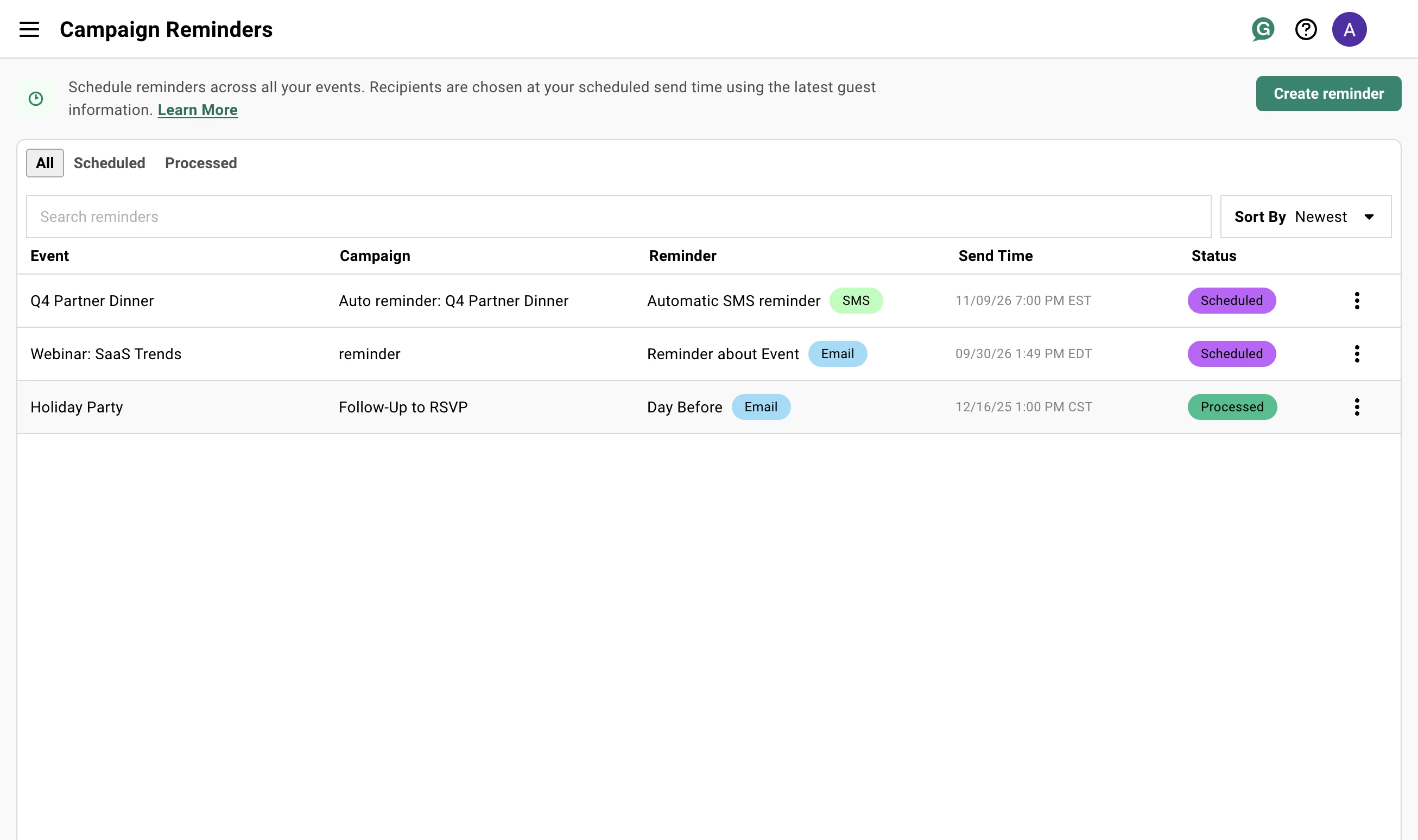
The Campaign Reminders dashboard shows every scheduled send across every event your team is running.
Creating a Reminder
Section titled “Creating a Reminder”There are two ways in. Attach a reminder to a campaign you’ve already sent, or write one from scratch in the composer. Either way you’re setting three things: who gets it, when it goes, and, for an attached reminder, which campaign’s message it borrows.
From a campaign you've already sent
-
Open the campaign you want to follow up on. Reminders live under the Reminders tab on the right side of the campaign view.
-
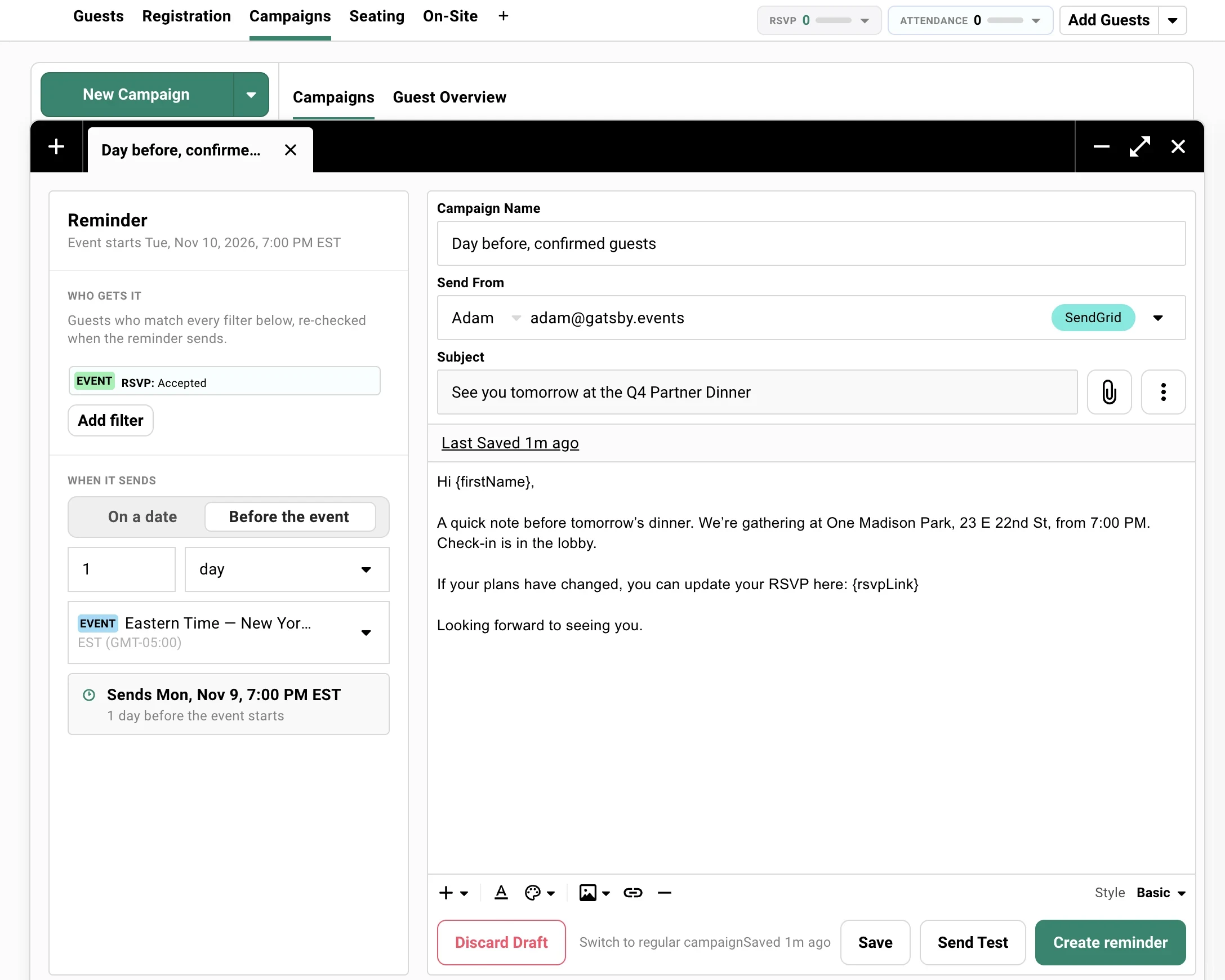
Click New Reminder. The Create Reminder modal opens with a live preview on the right.
-
Name the reminder. This is internal, so something like Day Before, Confirmed Attendees or T-7 Non-Responders makes it easier to find later.
-
Set Who gets it, the guests who should receive it.
-
Set When it sends, either a fixed date and time or an offset before the event starts.
-
Click Create Reminder.
The reminder borrows the campaign’s message as-is. The preview shows exactly what will go out, so you can sanity-check it before saving. On an email campaign the Send with row names the sending service, SendGrid, Gmail, or Outlook. It’s a quick way to confirm the campaign is on SendGrid before you schedule.
From the composer, with its own message
Use this when the follow-up should say something different from the invitation, and you don’t want to duplicate a campaign to get there.
-
Start a New Campaign and pick your channel.
-
In the chooser, pick Schedule reminder instead of Draft or Campaign.
-
Write the message.
-
Click Create reminder. The recipient picker is replaced by the reminder’s own filters, because a reminder’s audience is resolved when it fires, not now.
-
Set who and when in the modal, and create it.
The result appears in the Campaigns list as a row reading Reminder · scheduled for [date], and flips to Reminder · sent [date] once it goes.
An email reminder needs a SendGrid sender. If your organization has none connected, the option is disabled with a tooltip, and in reminder mode the sender dropdown only offers SendGrid accounts. Drafts remember they’re reminders. Close the composer, reopen the draft, and you’re back in reminder mode with your settings intact. Switch to regular campaign backs out.
Sending the same reminder for every event? Set it up once, then open the composer’s three-dot menu and pick Save as Template. That saves the message, the timing, and the filters as a template your whole team can reuse. On the next event, Load Template from the same menu fills all three back in. The list only shows templates for the channel you’re writing in, so an SMS reminder sees SMS templates. If the new event lacks a field one of the filters relies on, like a survey question only the original event asked, that filter is dropped and you’re told.
Who gets it: filtering the recipients
This is the same filter set you use on the guest list, not just RSVP status. Click Add filter and build the audience. The menu mirrors your guest list, grouped the same way:
- Event. RSVP, Attendance, Calendar Invite Status, Source, Referral Link, Is Plus One, Has Plus Ones
- Contact field. Company, Position, City, State, Tagged With, Dietary Restrictions, and any custom fields you’ve created
- Sections. The sections of your guest list
Events that collect survey answers or sell tickets show those filters too. At least one filter is required, and until you add one the panel says so.
A few guest-list filters aren’t offered here. Campaign status, seating, warnings, and anything that filters on a range or a date are all missing on purpose. A reminder resolves unattended days later, and those either can’t be re-run safely at that point or would quietly match nobody.
Whatever you pick is stored as a filter, not as a list of people, and re-run against the live guest list at the moment the reminder fires.
Older reminders created before this change keep their original RSVP-status filter and still work. Opening one from the Campaign Reminders dashboard shows a note instead of the filter editor. Open it from inside the event to edit the filters.
When it sends: a date, or an offset
Two modes, chosen with the toggle above the field.
On a date. A fixed date and time. Use it when the moment matters more than the event does: a Monday-morning send, a specific embargo time.
Before the event. A number and a unit (days, hours, or minutes) before the event starts. The offset is what’s stored, so this reminder follows the event. Move the event and every relative reminder on it is rescheduled to the same distance from the new start time. Nothing to remember, nothing to redo.
The timezone picker sits under both modes, labeling the event’s own zone EVENT and yours MY CURRENT so you can’t schedule against the wrong one by accident. In On a date it decides when the reminder actually goes out. In Before the event the offset has already fixed that, so the picker only chooses which zone the resolved time is displayed in.
Either way Gatsby works out the result as you type and shows it in a card underneath: Sends Mon, Sep 21, 7:00 PM EDT, and below that how far it lands from the event, 1 day before the event starts. That second line earns its place when you’ve picked a fixed date, because it tells you where your date actually falls relative to the event.
Reminders must be at least five minutes in the future.
Email or SMS
A reminder takes the channel of the campaign it belongs to. A reminder on an SMS campaign is a text, and one on an email campaign is an email. From the composer, the channel is whichever one you picked when starting the draft.
SMS reminders you write yourself need the SMS add-on. The free SMS Auto-Reminder every organization gets is covered below. See SMS Campaigns for the difference.
What the reminder inherits from the campaign
The reminder uses the campaign’s draft as-is. That means:
- Subject line, body, and any mail-merge fields
- All attachments from the draft
- The campaign’s sender (no separate sender configuration per reminder)
- The campaign’s BCC list
- QR code attachment (if the campaign has it enabled)
- Calendar file attachment (if the campaign has it enabled)
If you want a different message for the follow-up, write it in the composer as a standalone reminder. You can also edit the campaign’s draft before scheduling, or duplicate the campaign and schedule a reminder against the copy.
Email reminders require a SendGrid sender on the campaign. Campaigns using a connected Gmail or Outlook account can’t power a reminder, because those connections expire and would silently break scheduled sends. SMS reminders have no equivalent requirement.
On a Gmail or Outlook campaign you’ll still see the Reminders tab and any reminders already scheduled, but New Reminder is disabled. Hovering it shows “Reminders are only available for SendGrid senders.” To schedule one, switch the campaign’s sender to a SendGrid account. See Email Configuration for SendGrid setup.
Why filtering happens at send time
Section titled “Why filtering happens at send time”This is the difference between a reminder and a regular scheduled campaign, and it’s the whole point of the feature.
When a reminder fires, Gatsby re-runs your filters against the live guest list. The recipient list is computed fresh. Guests who shifted out of the filter between scheduling and sending are not included. Guests who shifted in are.
A concrete example
You’re hosting a CFO Breakfast in three weeks. You want to schedule two reminders against your invitation campaign:
-
T-7, target Invited and Clicked. Anyone who got the invite but hasn’t responded yet.
-
T-1, target Accepted. A friendly day-before confirmation with the address and parking notes.
When the T-7 reminder fires next week, anyone who accepted in the meantime drops off the recipient list automatically. They don’t get a “did you see our invite?” message after already saying yes.
When the T-1 reminder fires, it captures everyone who is currently Accepted, including the late RSVPs who said yes after T-7.
Combining filters
Common RSVP combinations:
- Invited + Clicked + Accepted (Survey Incomplete). Opened or visited the landing page but never finished. The classic “still waiting on you” cohort. Include the Incomplete sub-status: a guest who clicked Accept but never completed a required survey question is not done RSVPing, and leaving them out means the group closest to converting never gets the nudge.
- Accepted + Maybe. Anyone planning to come, plus the fence-sitters.
- Accepted alone, for confirmations and day-of details.
Because the full guest-list filter set is available, the audience can be narrower than a status:
- Accepted, and their ticket is still unpaid. The payment nudge, to exactly the people who owe.
- Accepted, and they answered “yes” to the dinner question. The table-assignment note, to the guests it applies to.
- Accepted, and not yet checked in. A where-are-you text on the day, once check-in has started.
- Plus-ones only. Arrival instructions for the guests who never saw the original invitation.
Mail merge still works
Every merge tag that works in the campaign works in the reminder, because the reminder uses the campaign’s draft: custom fields, first name, RSVP link, calendar link, and unsubscribe link.
If a recipient is missing a required custom field, that individual send fails and is recorded as Failed on the campaign. The rest of the reminder still goes out.
The SMS Auto-Reminder
Section titled “The SMS Auto-Reminder”Separate from everything above, and free for every organization: a one-tap text reminder that goes to guests who accepted, 24 hours before the event starts.
How it differs from a reminder you build
You don’t write it, schedule it, or filter it. You switch it on for an event under Registration → SMS Auto-Reminder, and Gatsby does the rest: fixed wording, fixed 24-hour timing, and guests who accepted and have a valid US mobile number.
It’s the safety net, not the tool. If you need a different message, different timing, or a different audience, that’s a custom SMS reminder and it needs the SMS add-on.
Where it appears here
Turning it on adds a row to the event’s Campaigns tab and to the Campaign Reminders dashboard, alongside everything else. It carries an Automatic label and has no action menu, because it’s system-owned.
To change or cancel it, go back to Registration → SMS Auto-Reminder and use the toggle. Opening the campaign shows a banner saying the same.
SMS Campaigns has the full detail: the exact message, who receives it, and what happens when the event moves.
The Campaign Reminders Dashboard
Section titled “The Campaign Reminders Dashboard”Find it under Campaign Reminders in the left navigation. The dashboard lists every reminder across every active event in your organization, and says so at the top.
Creating one from here
Create reminder sits at the top right. It doesn’t build the reminder on this screen. It asks Choose an event, you pick one from your upcoming events, and Go to Campaigns drops you on that event’s Campaigns tab to write it. The modal says as much: You’ll create the reminder from the event’s Campaigns tab.
The list shows upcoming events you have access to, with a Session or Registration Hub badge where the event has that role. Quick events aren’t listed.
The detour is the point. A reminder’s audience is a set of guest-list filters, and those only mean something inside an event, so the dashboard sends you where the guest list is.
What the dashboard shows
A single table with one row per reminder, email and SMS together, each row labeled with its channel. Columns: Event, Campaign, Reminder, Send Time (in the reminder’s timezone), and Status.
The default tab is All. Toggle to Scheduled to see only what hasn’t fired yet, or Processed for history.
Search the Reminder field by name. Sort by Send Time, newest or oldest first.
Editing or canceling from the dashboard
Click the three-dot menu on any Scheduled row.
Cancel Reminder works from here. View/Edit in Event takes you to the reminder’s campaign inside the event, which is where the filter editor lives. The dashboard has no guest list of its own to filter against.
Once a reminder is Processed the menu hides; you can’t edit a send that already happened. A scheduled reminder whose send time has slipped past is still cancelable, so nothing gets stranded.
SMS Auto-Reminders are view-only from here. Manage them under Registration → SMS Auto-Reminder on the event.
Statuses, Editing, and Canceling
Section titled “Statuses, Editing, and Canceling”Every reminder moves through a defined lifecycle. What you can do to it depends on where it is.
The lifecycle:
Scheduled —> Processed
Or, if you intervene: Scheduled —> Cancelled
If something goes wrong: Scheduled —> Failed
Status definitions
Scheduled
Created and waiting for its send time. Editable. Cancelable.
Processed
The reminder fired. Emails are out the door. The row shows how many guests received it. No further actions available.
Cancelled
You canceled before send time. No emails went out. The row stays in the dashboard for the audit trail.
Failed
Something blocked the send, typically a configuration issue with the campaign’s draft or sender. The error reason is recorded on the reminder.
Editing a Scheduled reminder
-
Open the reminder from inside the campaign. From the Campaign Reminders dashboard, use View/Edit in Event to get there.
-
Click Edit Reminder from the three-dot menu.
-
Change the name, the filters, the schedule mode, the offset or date, or the timezone. The same five-minute-minimum rule applies, so you can’t reschedule into the past or the immediate future.
-
Click Update Reminder.
You can’t change which campaign the reminder belongs to, or switch its channel. If you need a different message, cancel this reminder and create a new one against the right campaign.
An SMS Auto-Reminder can’t be edited at all. It’s managed from Registration → SMS Auto-Reminder.
Duplicating a reminder
To send a second reminder much like one you already have, open its three-dot menu inside the campaign and click Duplicate Reminder. This works on a reminder in any status, including one that’s already gone out.
The Create Reminder modal opens with the same filters, schedule, and channel filled in. The name is left blank for you to fill, and a fixed send time is moved to the future so it can’t land in the past. Adjust what differs and create it.
The SMS Auto-Reminder is the one reminder you can’t duplicate.
Canceling a Scheduled reminder
-
Open the three-dot menu on the reminder.
-
Click Cancel Reminder.
-
Confirm.
The reminder will not fire. The row stays in the dashboard with status Cancelled.
Common Questions
Section titled “Common Questions” When should I use a Reminder instead of scheduling a regular campaign?
Use a reminder whenever the audience depends on RSVP status: any follow-up, nudge, day-before note, or post-event message to a status-defined group.
Use a regular scheduled campaign for initial invitations, where you want the recipient list locked at the moment you schedule.
The short version: if you’d describe the send as “to everyone who hasn’t responded yet” or “to confirmed attendees,” it should be a reminder.
Can I send more than one reminder from a single campaign?
Yes, and this is the intended pattern. Stack a T-7 nudge to non-responders, a T-2 nudge to fence-sitters, and a day-of confirmation to Accepted guests, all against the same invitation campaign.
Each reminder is independent: its own name, filter, and send time.
I moved the event date. Do I have to redo my reminders?
Not if you scheduled them as Before the event. Those store an offset, so they reschedule themselves to the same distance from the new start time, automatically, without you opening them.
Reminders scheduled On a date stay where you put them. That’s the point of the mode: a fixed moment is a fixed moment. If you moved the event, check them.
Can I use a different message for the reminder than the original invite?
Yes. Start it from the composer rather than from a sent campaign. Pick Schedule reminder in the new-draft chooser, write whatever you want, and set the timing. You get a reminder with its own message and no duplicated campaign to keep track of.
Attaching a reminder to an existing campaign still borrows that campaign’s message as-is.
Can I send a reminder as a text instead of an email?
Yes, with the SMS add-on. Reminders on an SMS campaign are texts, and the composer lets you start a standalone SMS reminder the same way it does an email one.
Without the add-on, every organization still gets the free SMS Auto-Reminder: one text, 24 hours before, to guests who accepted. See SMS Campaigns.
What if a guest's RSVP status changes after I schedule the reminder?
That’s the whole point. The recipient list is recomputed when the reminder fires, not when you schedule it.
If someone moves from Invited to Accepted between scheduling and firing, and your reminder targets Invited, they won’t get it. If they move the other way, from Accepted to Declined, and your reminder targets Accepted, they also won’t get it.
What happens if a guest is missing a custom field used in mail merge?
That individual send fails. The guest is recorded with status Failed on the campaign, with the reason noted (missing custom field name).
The rest of the reminder still goes out to everyone else. The reminder itself is marked Processed once the run completes, with the failure count surfaced in the execution snapshot.
To avoid this, make sure every targeted contact has values for the custom fields your draft references, or remove the unused merge tags from the draft.
How far in advance can I schedule a reminder?
There’s no maximum. Schedule a reminder months out if your event is months out.
The minimum is five minutes in the future. The same goes for edits, so you can’t reschedule a reminder to fire in the next five minutes.
Do reminders respect unsubscribes?
Yes. The same org-wide email unsubscribe rules that apply to campaigns apply to email reminders. Anyone who unsubscribed from your organization’s emails will not receive one, whatever their RSVP status.
SMS reminders honor the SMS opt-out lists, which are separate. A guest who replied STOP or BLOCK is dropped at the moment the reminder fires. See SMS Consent & Compliance.
Can I see who actually received a Processed reminder?
Yes. Once a reminder is Processed, the campaign’s standard tracking tabs (Sent, Bounced, Failed, etc.) include the reminder’s sends. The reminder row itself records the count of successful sends at the time it ran.
Why do email reminders require SendGrid?
Same reason confirmation emails do. Gmail and Outlook connections expire periodically and prompt you to log back in. If that happens between when you schedule a reminder and when it fires, the send fails silently and your guests never hear from you.
SendGrid connections don’t expire. A reminder scheduled six weeks out will fire reliably whether you’re at your desk or not. SMS reminders send through Gatsby’s own carrier connection, so they have no equivalent requirement.
If your campaign is sending from Gmail or Outlook, the Reminders tab still appears, but New Reminder is disabled, and hovering it shows “Reminders are only available for SendGrid senders.” Switch the campaign’s sender to a SendGrid account before scheduling a reminder. The Email Configuration page walks through SendGrid setup.
Where do I find a reminder I scheduled last week?
Two places. Inside the campaign it belongs to, under the Reminders tab. Or across every event at once, under Campaign Reminders in the left navigation. Both show the same data.