
Overview
Ticketing
Sell tickets directly through Gatsby. Set prices, manage promo codes, track payment status, and issue refunds from your guest list.
When an event has a ticket price, payment tracking stays on your guest list.
Not every event charges admission. But when yours does, you shouldn’t need a separate platform to handle it. Gatsby adds payment status, receipts, and promo codes directly to the guest list where you already manage RSVPs, dietary preferences, and seating. One less system to reconcile after the event.
Ticket Sales and Payouts
A global menu for sales and payouts across all your events. This is also where you connect your Stripe account for receiving funds.
Event Ticket Settings
A dedicated tab inside each event where you set price, configure promo codes, and control how payment works for that event.
Stripe Setup and Payouts
Section titled “Stripe Setup and Payouts”Gatsby processes all ticket payments through its own Stripe account. Your connected Stripe account is where payouts land after events close.
How payouts work
Gatsby processes all ticket sales through its own Stripe account. Your Stripe account is only needed when it is time to receive your payout.
You do not need Stripe connected before your event goes live. Guests buy tickets, funds stay in Gatsby’s account, and the payout transfers to your Stripe once the event ends. Gatsby holds funds until then because it covers any refunds in the interim.
How to connect Stripe
-
Open Ticket Sales and Payouts in the main navigation.
-
Select Payment Settings.
-
Click Connect Stripe Account and follow the prompts.
You only need to do this once. The connected account applies to all your events.
Ticket Sales and Payouts dashboard
The Ticket Sales and Payouts section gives you a summary of sales and payouts across all your events. Check total revenue, outstanding balances, and payout history without opening individual events.
This is also where you find the transaction ledger. It records every purchase, refund, and dispute across your events. You can filter by guest, ticket type, or amount, view invoice details for individual transactions, and download logs for reporting or reconciliation.
Enabling Tickets on an Event
Section titled “Enabling Tickets on an Event”Ticketing is off by default on every new event. Turn it on from the event’s settings.
-
Open your event.
-
Go to the Tickets tab in the event details.
-
Toggle ticketing on.
-
Set your ticket price and configure settings.
One ticket type per event
Each event supports one ticket type. If you need multiple price tiers, like GA and VIP, set up a series and enable ticketing on each sub-event separately.
Guests register for the series and select their sub-event during the RSVP flow. The ticket price adjusts based on which sub-event they choose.
Fixed price vs. donations
Fixed price sets a specific dollar amount. Every guest pays the same.
Donations let guests choose what they pay within a range you define. Set a minimum and a maximum. Guests enter their amount at checkout.
Plus ones
Plus ones function as additional ticket purchases. When a guest registers and adds plus ones, the total charge multiplies. A $100 ticket with two plus ones comes to $300.
Guests set the number of plus ones during the RSVP flow. You control whether plus ones are allowed in your event settings.
Ticket Settings
Section titled “Ticket Settings”Configure each ticket from the Tickets tab when creating or editing your event.
Ticket name and price
The ticket name appears on the receipt and in the checkout form. Price is in USD.
Transaction fees
By default, Gatsby absorbs the transaction processing fee. Toggle this on to pass the fee to guests instead. The checkout form shows the total including the fee before guests confirm payment.
Sales tax
Sales tax is disabled by default. Most event scenarios don’t require it. If your jurisdiction requires you to collect sales tax, enter the applicable rate. Consult a tax advisor before enabling this. Requirements vary by location.
Statement descriptor
Controls what appears on a guest’s credit card statement. By default it reads “Gatsby.events tickets.” Change this to something your guests will recognize, like your company name or event name.
Refund contact email
Add an email address to receipts so guests know who to contact about refunds. Optional, but useful if you want refund requests routed to your team rather than Gatsby support.
Each promo code has four properties you set when creating it.
Creating a promo code
Code
The string guests type at checkout.
Discount type
Four options: Percentage takes a percentage off the price. Fixed amount subtracts a specific dollar amount. Fixed price sets the ticket to an exact price you choose. Free makes the ticket $0.
Quantity
How many times the code can be used. Once the limit is reached, the code stops working.
Expiration
An optional date. The code becomes invalid after this date passes.
Early bird pricing
Create a code with a percentage discount and an expiration date. Share the code in a campaign before the deadline. When the date passes, the code stops working and registrants pay full price.
Example: 25% off a $200 ticket, expiring one week before the event. Anyone who registers with the code pays $150. After the expiration, no discount applies.
Bulk unique codes per guest
Export a promo code template, fill in unique codes in a spreadsheet, and import the list back into Gatsby. Each guest gets their own code.
Use the {promoCode} merge field in a campaign email to send each guest their unique code. Pair it with the {rsvpLink} merge field so they click straight through to checkout.
Tracking usage
Your guest list gains a Promo Code Used column once ticketing is on. Sort or filter by this column to see which codes were redeemed and by whom.
Pausing a promo code
You can pause a code without deleting it. A paused code stops working at checkout but keeps its settings and usage history. Unpause it when you’re ready to reactivate.
Payment Tracking
Section titled “Payment Tracking”Enabling ticketing adds three columns to your guest list: Payment Status, Receipts, and Promo Code Used.
Payment Status
Payment Status shows where a guest stands: Paid, Pending, Refunded, Chargeback, or Failed.
Chargeback
The guest disputed the charge with their bank. Stripe handles the dispute. You’ll see the status update on your guest list and in the transaction ledger.
Failed
The payment attempt did not go through. The guest may have had insufficient funds or a declined card.
Receipts
Receipts stores a link to each guest’s receipt. The receipt is a PDF showing the ticket name, promo code (if used), payment method, and amount charged. Click the dropdown arrow next to any receipt to view details, initiate a refund, or resend it to the guest.
RSVP statuses with ticketing
When ticketing is on, registration tracks three states instead of one.
Accepted
Payment complete. The guest is confirmed and has a receipt.
Accepted, Payment Incomplete
The guest finished the survey and reached the credit card form but did not pay. They are the closest to completing checkout. Follow up with these guests first.
Survey Incomplete
The guest started registration but did not finish the survey. They never reached payment. Follow up after you have chased down the Payment Incomplete group.
What Guests Receive
Section titled “What Guests Receive”After payment, guests receive two emails: a confirmation email with their ticket PDF attached (alongside the calendar invite, if enabled) and a separate receipt email from Stripe.
Ticket PDF
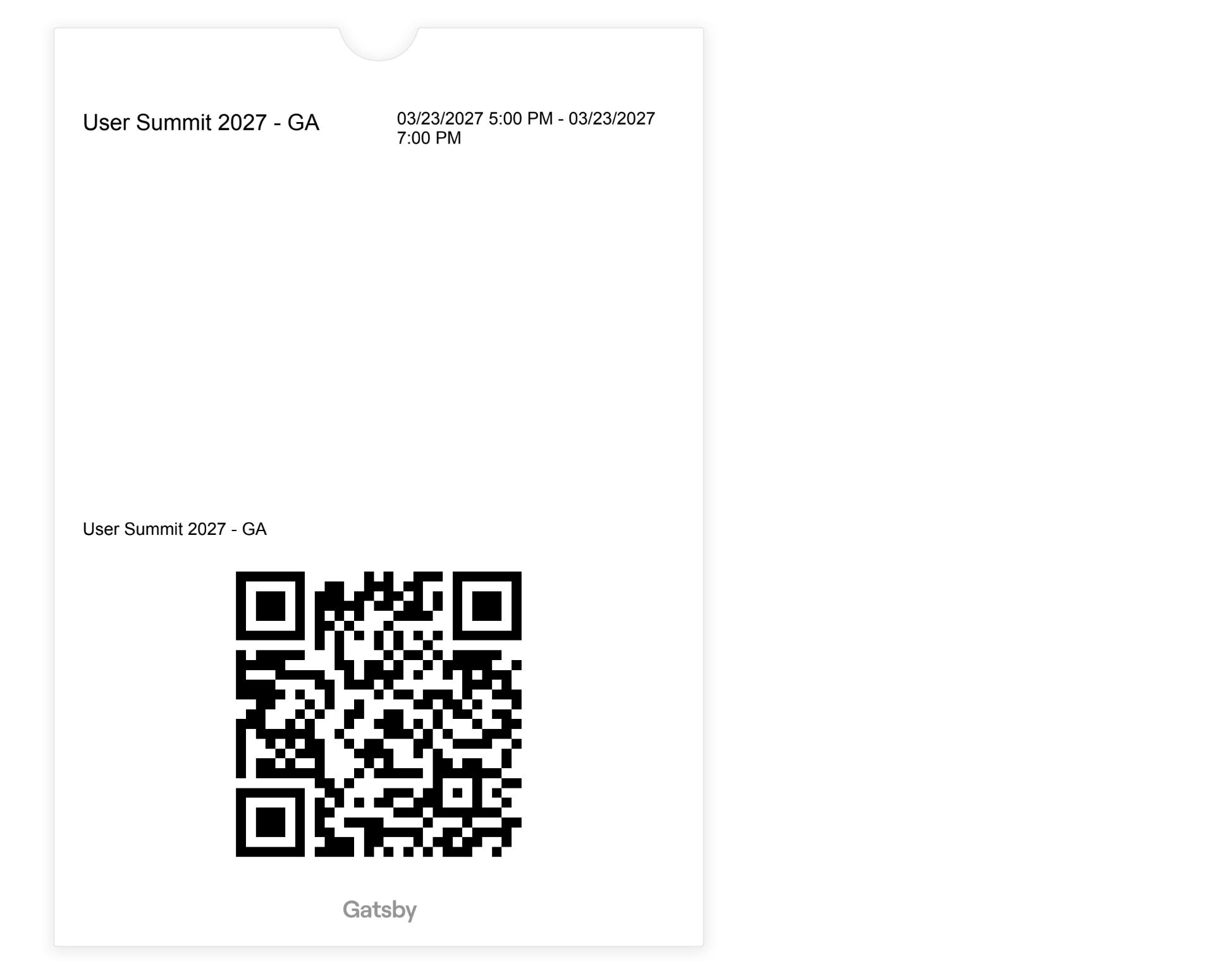
The ticket PDF includes the event name, event date and time, the guest’s name, the ticket type, and a QR code. The QR code works with Gatsby’s check-in app at the door. Each ticket is event-specific, so a VIP ticket only scans at VIP check-in, not GA.
For series events, the ticket attaches to the confirmation email of the main series event where the guest registered.
Receipt email
Stripe sends a separate receipt email with Gatsby branding. It includes an itemized invoice showing the ticket name, promo code (if one was used), payment method, and the amount charged. The receipt is a downloadable PDF.
Re-downloading tickets and receipts
Guests can return to their registration page to download their ticket and receipt again. Both PDFs are available from the edit registration view.
Organizers can resend a receipt to a guest directly from the guest list.
Refunds
Section titled “Refunds”Refunds are issued from the Receipts column on your guest list. Expand the dropdown arrow next to a receipt and select the refund option. Service fees are non-refundable. The guest’s payment status updates to Refunded and they receive a confirmation to the email on their record.
When you approve a waitlisted guest, the status you assign matters. One option requires payment. The other confirms them outright.
The right status sequence
Move approved guests to Accepted, Payment Incomplete, not Accepted.
Accepted means the guest is confirmed. No payment required. A guest moved from Waitlisted directly to Accepted skips the payment prompt and won’t be charged.
Accepted, Payment Incomplete tells the system the guest is approved but still owes payment. They get prompted to complete checkout when they return to their registration link.
Prompting payment via campaign
After moving guests to Accepted, Payment Incomplete, send a campaign email with the {rsvpLink} merge field. When guests click their link, they see a banner at the top of the registration page prompting them to complete checkout.
No separate payment link needed. The personal RSVP link handles it.
Common Questions
Section titled “Common Questions” How do fees work?
Gatsby charges a platform fee on each ticket sale. Stripe charges a separate processing fee per transaction. Contact your account manager for current rates.
What payment methods are supported?
Guests pay by credit card. Google Pay, Apple Pay, and Stripe Link appear at checkout if the guest’s browser supports them.
What do guests see at checkout?
Guests see a Stripe checkout form with the ticket name, price, and a field for card details. If you enabled fee pass-through, the total with fees is shown before they confirm.
Can I make a guest exempt from paying?
Yes. Mark a guest as exempt from the guest list before they register and their ticket price is waived. You can also create a 100% off promo code and share it with specific guests.
What if a guest doesn't finish checkout?
Their RSVP status shows as Accepted, Payment Incomplete. Send them a campaign email with the {rsvpLink} merge field. When they click through, they see a prompt to complete payment.
Can I have multiple ticket types?
Each event supports one ticket type. For multiple price tiers, create a series and enable ticketing on each sub-event. Guests pick their sub-event during registration and pay accordingly.
What happens if a guest disputes a charge?
Their payment status changes to Chargeback on your guest list and in the transaction ledger. Stripe handles the dispute process directly. Contact your account manager if you need help responding to a dispute.