
Overview
Calendars
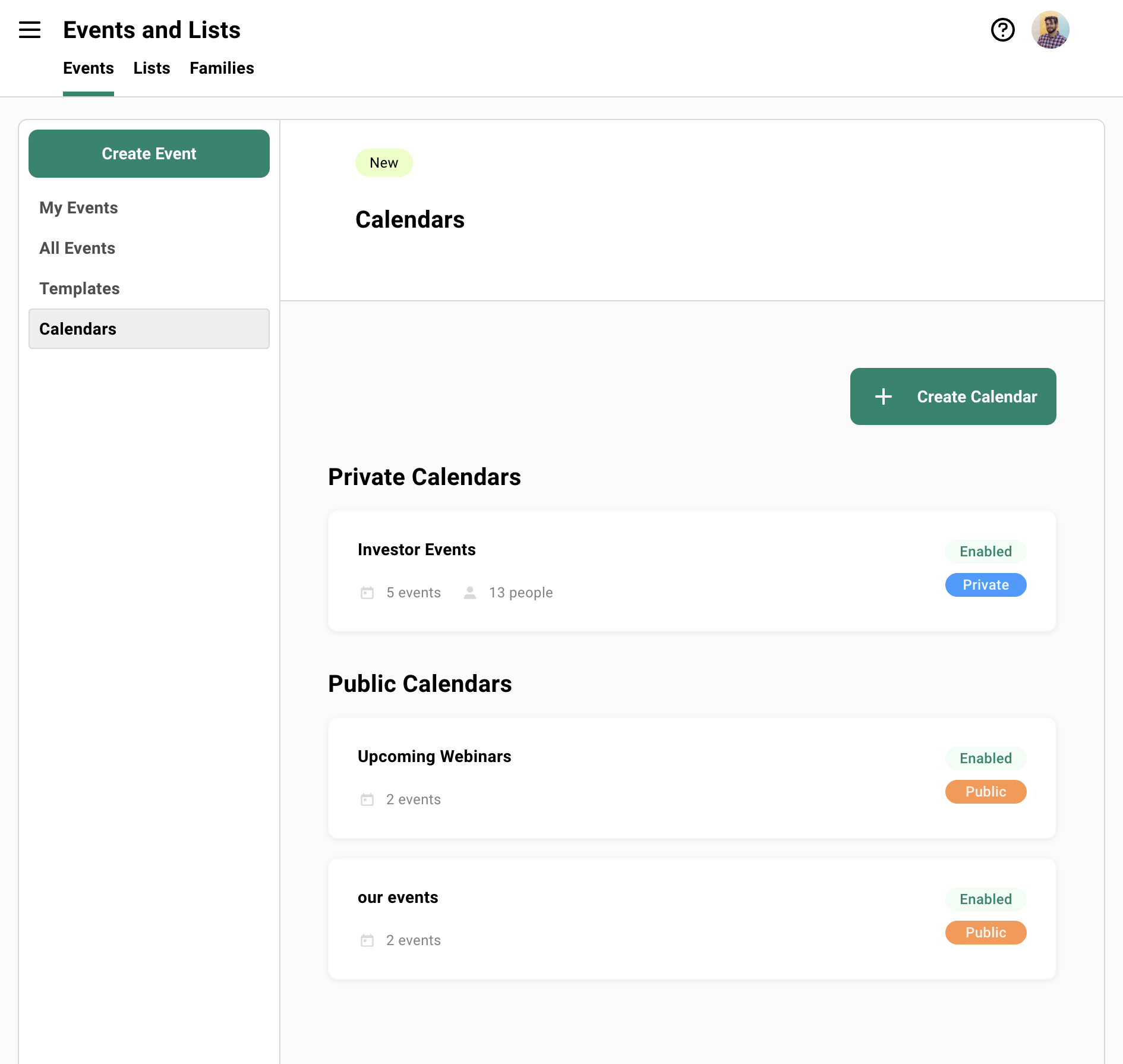
Create curated event listing pages for any audience. Public calendars share a single URL. Private calendars give each contact their own link with self-service registration.
Every new event means another email with another registration link. There’s no single place your contacts can go to see what’s coming.
You run a dinner series or a handful of member events each quarter. Each one needs its own email and its own link. Your contacts have no way to see what’s available to them and register on their own.
Curated Event Pages
You pick which events appear, and past events drop off automatically. One link your contacts can come back to instead of waiting for the next invitation.
Public and Private
Public calendars share a single link with anyone. Private calendars give each contact a unique link so they can browse your events and register themselves.
Creating a Calendar
Section titled “Creating a Calendar”Give it a title, set it to Public or Private, and optionally add a logo and page description. Visitors see the title at the top of the page (“Upcoming Events,” “Austin Area Events”). The logo and description set the context.
How to Create a Calendar
-
Go to Calendars below your events dashboard.
-
Click Create Calendar.
-
Enter a Title for the calendar page.
-
Set Access to Public or Private.
Public calendars get a shareable URL. Private calendars require connecting a contact list.
-
Optionally add a Logo and Description.
You can control the logo width to match your branding.
-
Toggle Hide Past Events if you want ended events to drop off automatically.
Adding Events
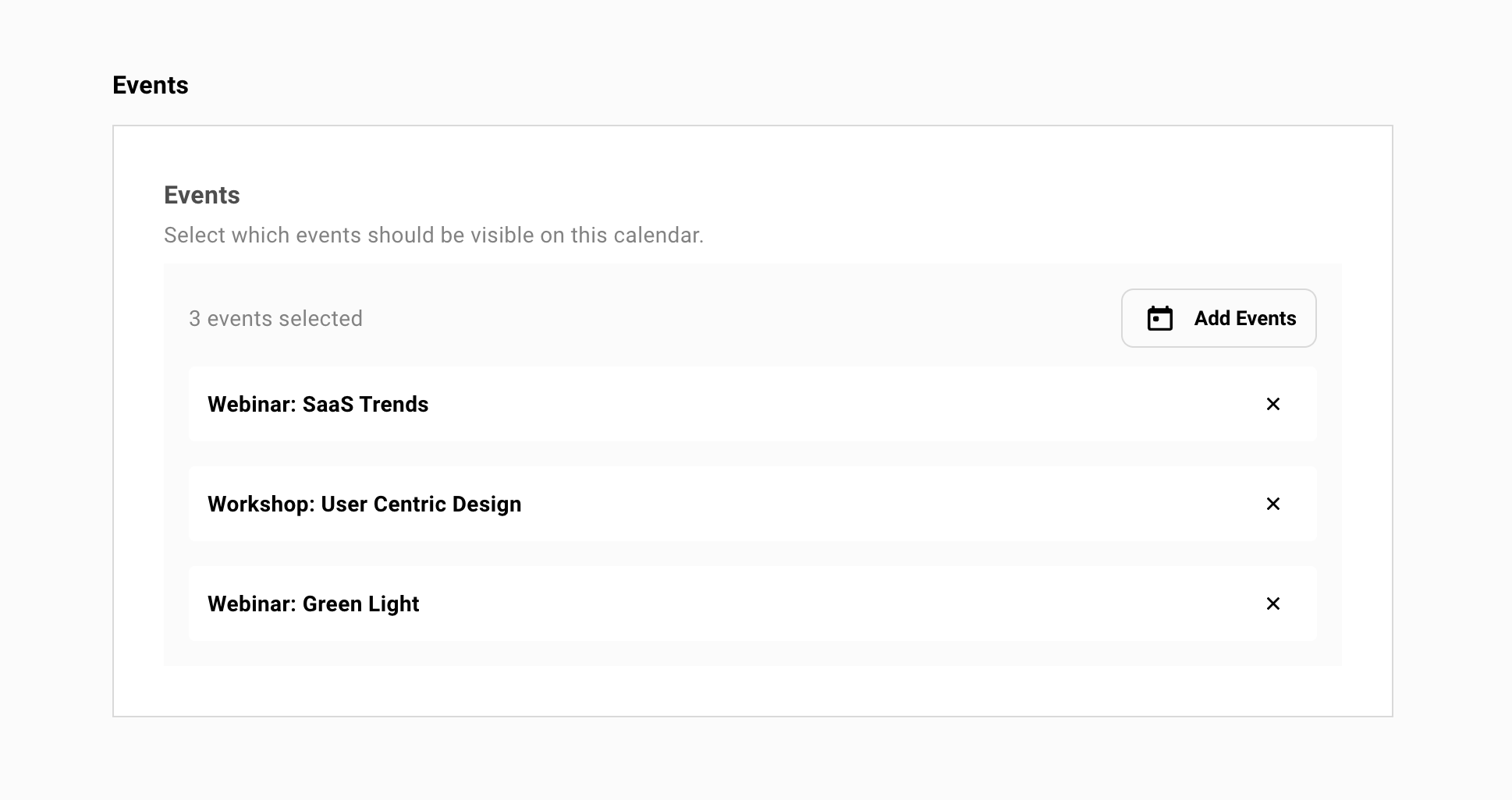
Section titled “Adding Events”Calendars are curated, not automatic. Creating a new event in Gatsby doesn’t add it to a calendar. You go to the calendar and add events manually. This means you control exactly what each audience sees.
Events appear in chronological order. Visitors see each event’s date, city, image, and description. Clicking an event takes them to its registration page.
How to Add Events to a Calendar
-
Open your calendar from the Calendars section.
-
Click Add Events.
-
Select which events to include.
For public calendars, only events with a public link enabled are available.
-
Events appear on the calendar page in chronological order.
To remove an event, open the calendar and remove it from the list. The event itself isn’t affected.
Organize events by region or topic by creating separate calendars. Each calendar is its own page with its own URL.
Connecting Contact Lists
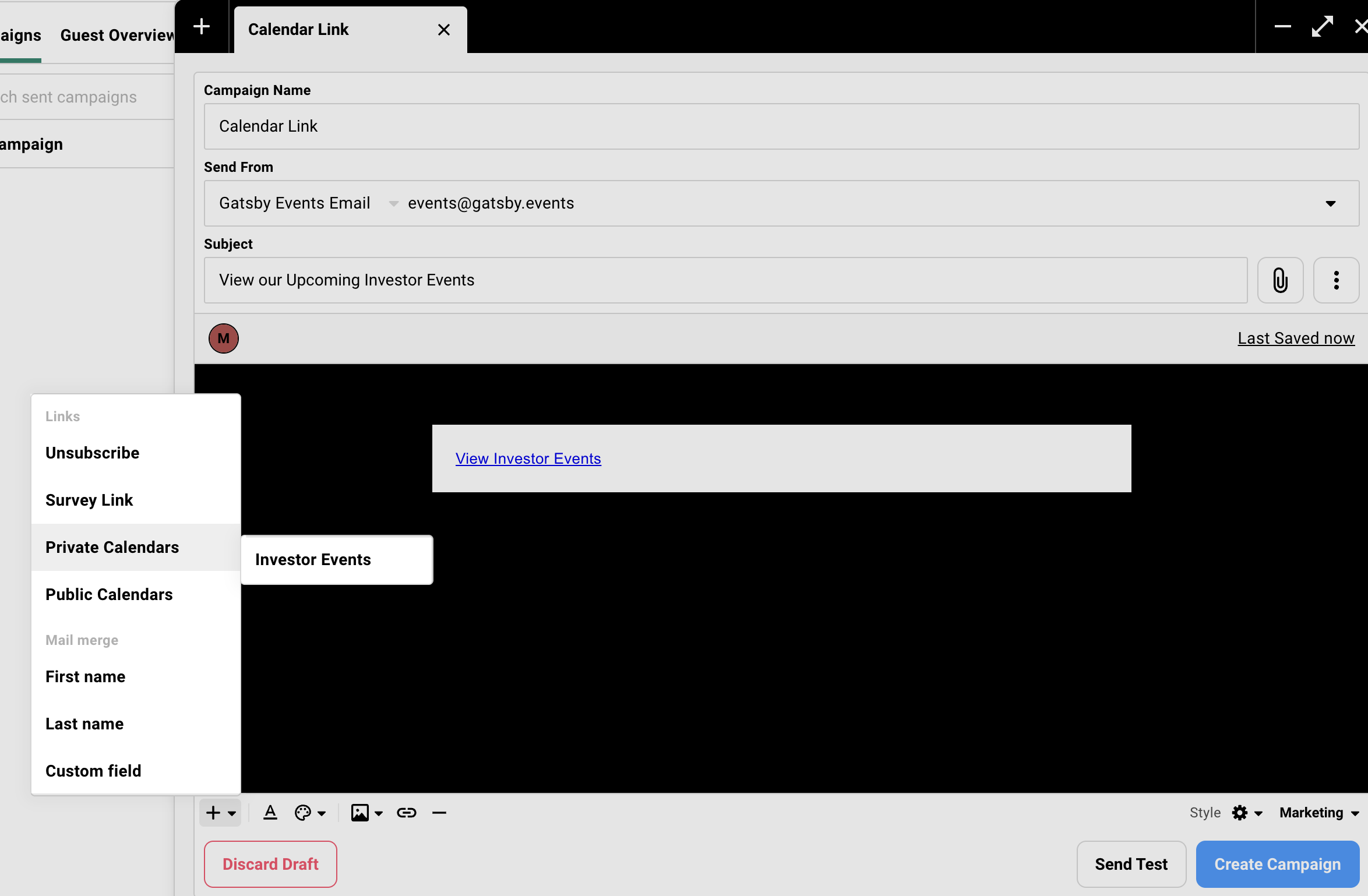
Section titled “Connecting Contact Lists”Private calendars are tied to one or more contact lists in Gatsby. The contacts on those lists are your audience. You distribute the calendar by emailing each person their unique link using a merge tag in Campaigns.
Events on a private calendar don’t need public links enabled. They can be events that aren’t discoverable anywhere else, visible only to the people who receive the calendar link.
How to Set Up a Private Calendar
-
Create a calendar and set Access to Private.
-
Associate it with one or more Contact Lists.
-
Add the events you want contacts to see.
-
Go to Campaigns inside one of the associated lists.
-
Create an email and insert the Private Calendar merge tag.
The merge tag generates a unique URL for each recipient.
-
Send the campaign. Each contact receives their own calendar link.
If you have multiple associated lists, create a separate campaign from each list. The merge tag works the same way in each.
The Registration Experience
Section titled “The Registration Experience”When a contact opens their calendar link, they see the same event listing as a public calendar. The difference is what happens when they click an event.
Their name and email auto-fill. They register, get added to that event’s guest list, and receive a confirmation email with a calendar invite. No retyping their information for each event. If they’ve already registered, the calendar shows their RSVP status with an option to edit their response.
What Contacts See
Contacts land on a page showing each event’s date, city, image, and description in chronological order.
Registering for an event
Click an event. Information auto-fills from their contact profile. They confirm their registration and get added to the event’s guest list automatically. A confirmation email with a calendar invite follows.
Already registered
If they’ve already registered for an event, the calendar shows their current RSVP status (accepted, declined, or waitlisted). They can edit their response based on the editing permissions you’ve set on that event.
Event at capacity
Capacity is handled at the individual event level. If an event hits its cap, the next person sees either a closed registration message or a waitlist option, depending on that event’s settings.
Common Questions
Section titled “Common Questions” What happens if someone forwards their private calendar link?
The link is tied to a specific contact record, so anyone who opens it acts on that contact’s behalf. An executive assistant could use it to RSVP for their boss, for example. Any registration through the link is attributed to the original contact. Other people can open the link, but it won’t create new contact records.
Is this an actual calendar with a grid view?
No. The page displays events as a chronological list with the date, city, image, and description for each event. There’s no calendar grid, no week/month layout, and no iCal sync. Think of it as a curated event listing page.
Can visitors filter or search events on the page?
Not currently. Events display in chronological order. If you need to organize events by region or topic, create separate calendars for each.
Can I customize the page design?
The logo and event images carry your branding. Beyond that, fonts, colors, and button styles follow Gatsby’s default design. There are no additional customization controls.
Can I connect multiple contact lists to one private calendar?
Yes. Associate as many lists as you need. Send the calendar link from each list separately using the merge tag in Campaigns.
Do new events appear on the calendar automatically?
No. Calendars are intentionally curated. When you create a new event, you add it to the calendar manually. This gives you control over exactly what each audience sees.
Can I embed the calendar on an external site?
Yes, public calendars can be embedded via iframe. They’re designed as standalone pages, but embedding works.
Can I see which events people are clicking on?
Yes. At the top of each calendar you’ll see summary stats including total views and event clicks. Clicking the event clicks count opens a breakdown showing how many times each event was viewed. You can’t export this data directly, but you can copy and paste it from that view.